
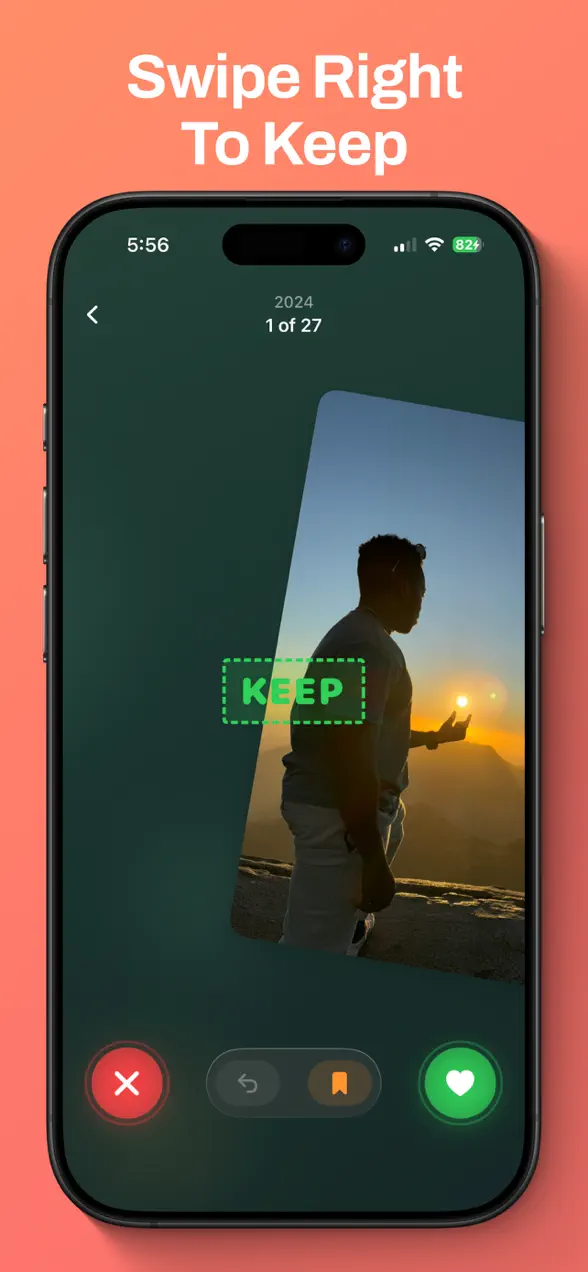
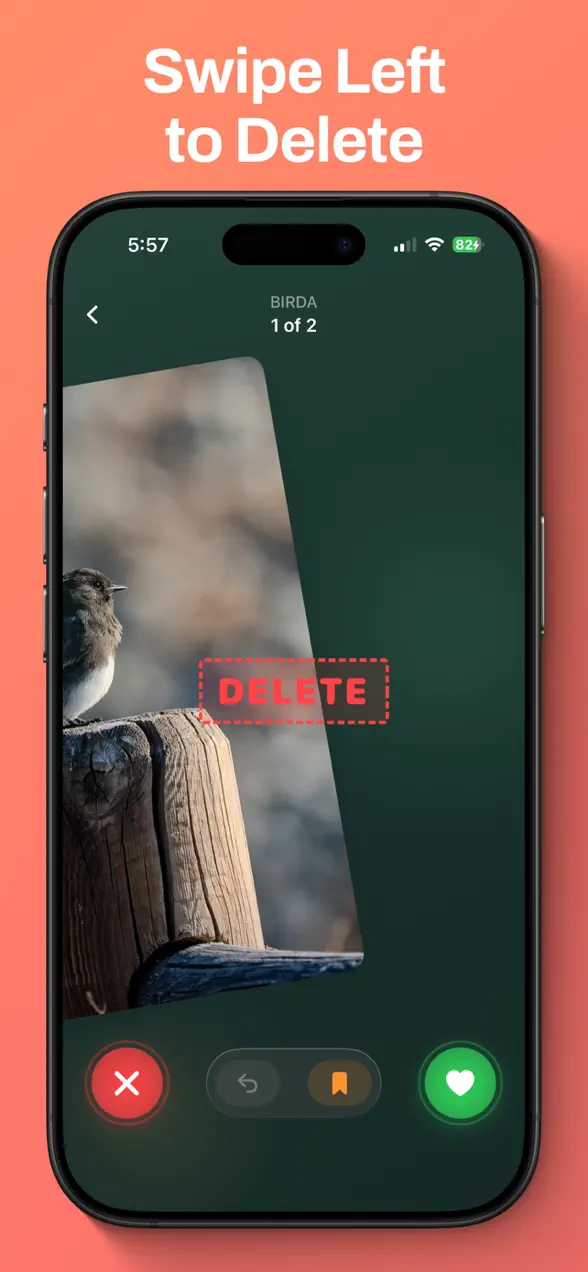
The fastest way to clean up an iPhone camera roll takes four steps. Merge duplicates with the Photos app's built-in Duplicates album, clear out screenshots and big videos, swipe through the rest in short sessions, then empty Recently Deleted so you actually get the space back. The first and last steps are free and built into iOS. For the swiping, I built Tidy Cam: swipe right to keep, left to delete, up to bookmark. It has a 3-day free trial, then a Tidy Cam+ subscription.
Step 1: Merge duplicates with the Photos app (free)
Start with what's already on your iPhone. Since iOS 16, the Photos app finds duplicate photos and videos for you. Apple's steps:
- Open Photos and tap Collections.
- Tap Utilities, then Duplicates.
- Tap Merge on a set, or tap Select and Select All to merge everything, then confirm.
Merging keeps one photo with the highest image quality and the relevant data, and moves the others to Recently Deleted (Apple Support). If you don't see a Duplicates album, either you have none or your iPhone hasn't finished scanning. Apple says detection needs the phone locked and connected to power, and can take up to a few days for a big library.
Step 2: Go after the big, easy wins
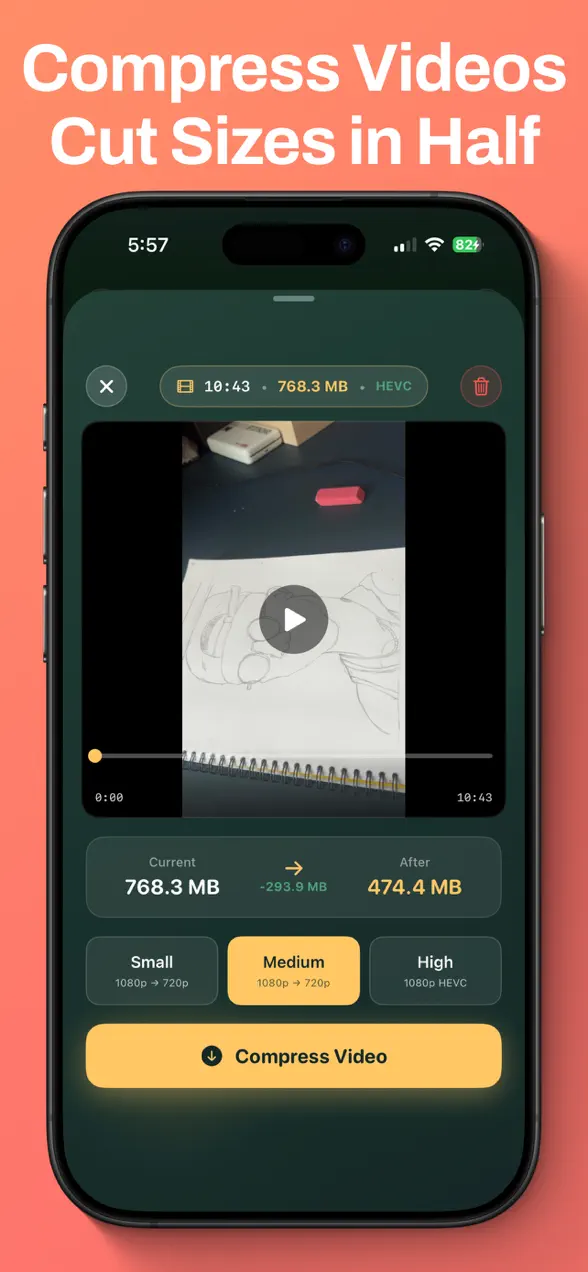
Screenshots and long videos free up the most space for the least effort. Nobody needs a boarding pass from 2022. Filter to just screenshots or just videos and clear them in one sitting. Videos are usually the biggest files on your phone, so compress the ones you want to keep rather than deleting them. In the screenshot above, Tidy Cam's video compressor shrinks a 10-minute, 768 MB video to about 474 MB at the Medium setting.
Step 3: Swipe through the rest in short sessions
This is the part people never finish, because going through thousands of photos one by one in the Photos app is slow. I built Tidy Cam to make it quick. You see one photo at a time and make one decision:
- Swipe right to keep, left to delete, up to bookmark for later.
- Pick a batch so it never feels endless: monthly albums, Screenshots, Selfies, Videos, Live Photos, On This Day, Random, or Since Last Clean, which picks up where you left off.
- Review before anything goes. Your left swipes are collected and deleted together when you confirm, and a session recap shows what you kept, deleted and bookmarked.
- Set a goal if you like a target, like one month of photos per evening.
Tidy Cam also has a duplicate and burst remover that groups exact duplicates and burst shots so you can choose which to keep, a Face ID Photo Locker for private photos, and a Photo Puzzle game that turns forgotten photos into 3D cube puzzles, with stats and a streak. Everything happens on your device. Your photos aren't uploaded anywhere.
| Platforms | iPhone and iPad |
|---|---|
| Price | 3-day free trial, then a Tidy Cam+ subscription (monthly, yearly or lifetime options). Free users get a limited number of swipes per day |
| Ads | Optional rewarded ads for Photo Puzzle hints |
| Cleanup tools | Swipe sorting, filters, duplicate and burst remover, video compressor, goals, session recap |
| Privacy | Photos stay on your device; Face ID Photo Locker |
Step 4: Empty Recently Deleted, or you won't get the space back
This is the step most guides skip. Photos you delete, whether in the Photos app, by merging, or with Tidy Cam, go to the Recently Deleted album and stay there for 30 days before they're removed for good. To free the space now: open Photos, tap Collections, open Recently Deleted under Utilities, unlock it with Face ID, then tap Select and delete all. After that you can't get them back, so glance through first.
If you use iCloud Photos, deleting a photo on your iPhone deletes it on your other devices too. That's how you free up iCloud storage, but make sure you really don't want a photo before it goes.
What Tidy Cam doesn't do
- It's not free for heavy cleanups. After the 3-day trial, free users get a limited number of swipes per day. Clearing a big library in one weekend means Tidy Cam+.
- No AI photo search. It won't find "every photo of a receipt" for you. Screenshots, Selfies, Videos and Live Photos are the filters.
- For exact duplicates, Apple's tool is enough. The built-in Duplicates album is free and handles them well. Tidy Cam is most useful for the thousands of photos that aren't duplicates but that you still don't need.
For the full feature list, see the Tidy Cam app page. Once your camera roll is tidy, you could turn your best photos into puzzles with ScrapIt, or use Pinit to save the places behind them.
Frequently asked questions
How do I delete duplicate photos on iPhone?
Open Photos, tap Collections, then Utilities, then Duplicates, and tap Merge on each set, or Select All then Merge. The Photos app keeps the best-quality copy and moves the rest to Recently Deleted. It's available on iOS 16 and later.
Why didn't deleting photos free up storage?
Deleted photos stay in the Recently Deleted album for 30 days. To free the space right away, open Recently Deleted in Photos, unlock it, and delete the photos there. That can't be undone.
Is Tidy Cam free?
Tidy Cam is free to download with a 3-day free trial. After that, free users get a limited number of swipes per day, and Tidy Cam+ (monthly, yearly or lifetime) removes the limit.
Does Tidy Cam upload my photos?
No. Tidy Cam works on your device and your photos aren't uploaded. It also includes a Face ID Photo Locker for private photos.
First published . Updated September 26, 2026: rewrote the post as a step-by-step camera roll cleanup guide, added what the iPhone Photos app can do for free (with Apple's instructions), and clarified Tidy Cam's pricing.