The iPhone Photos app can't turn a picture into a puzzle, so you need an app for it. I made ScrapIt Puzzles for exactly this. Pick a photo from your library, and it's cut into shuffled tiles for you to put back together, with no timer or against the clock. Then you can drop the finished photo into a scrapbook page with stickers, drawings and text. ScrapIt is free on iPhone and iPad with no in-app purchases.
How to make a puzzle from your own photo
- Install ScrapIt Puzzles from the App Store (iPhone or iPad).
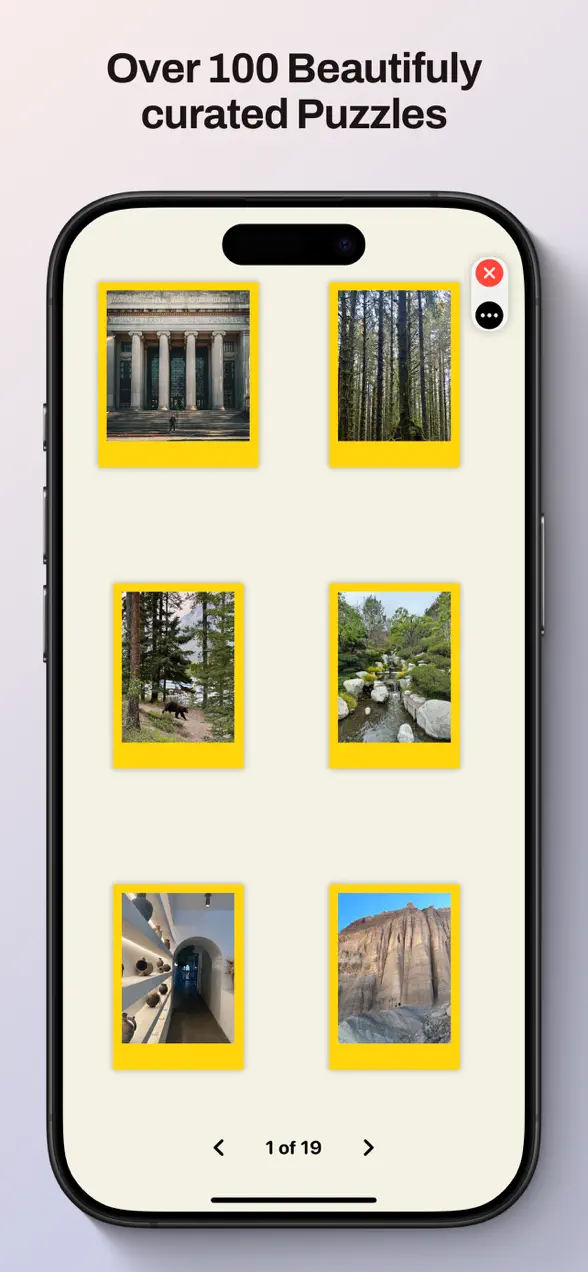
- Choose your own photo. Pick any picture from your library, or browse the curated photo galleries if you just want to play.
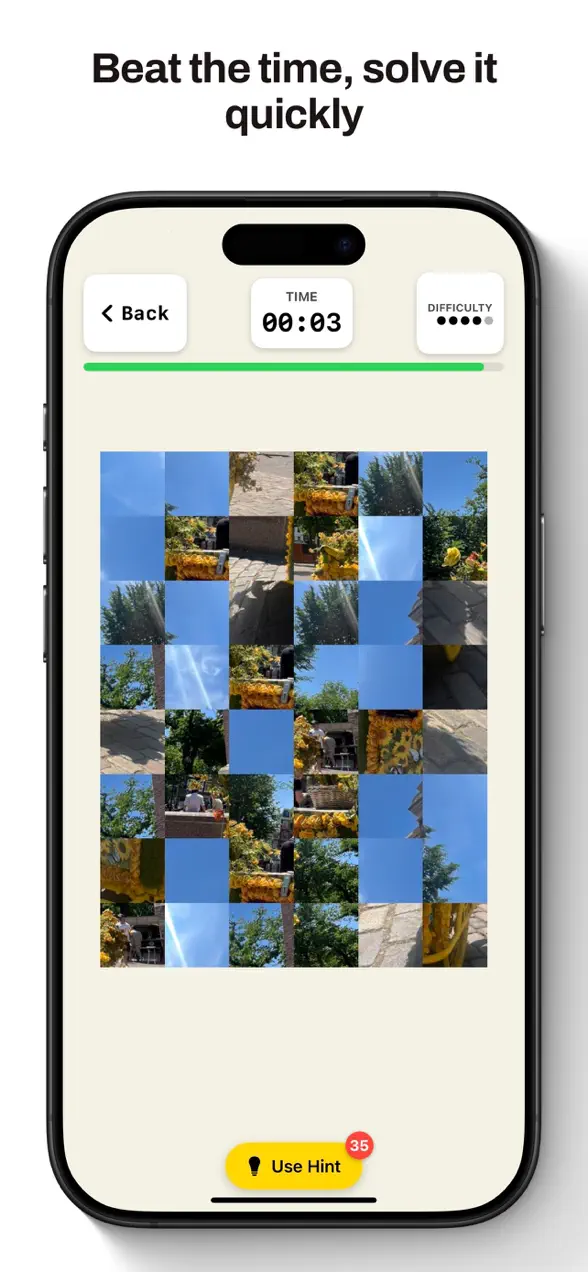
- Pick a mode. Classic has no timer, so you can take your time. Timed puts a clock on it, if you want to beat your best.
- Rebuild the picture. The photo is cut into square tiles and shuffled, and you move the tiles back into place. Each puzzle shows its difficulty, and there's a hint button if you get stuck.
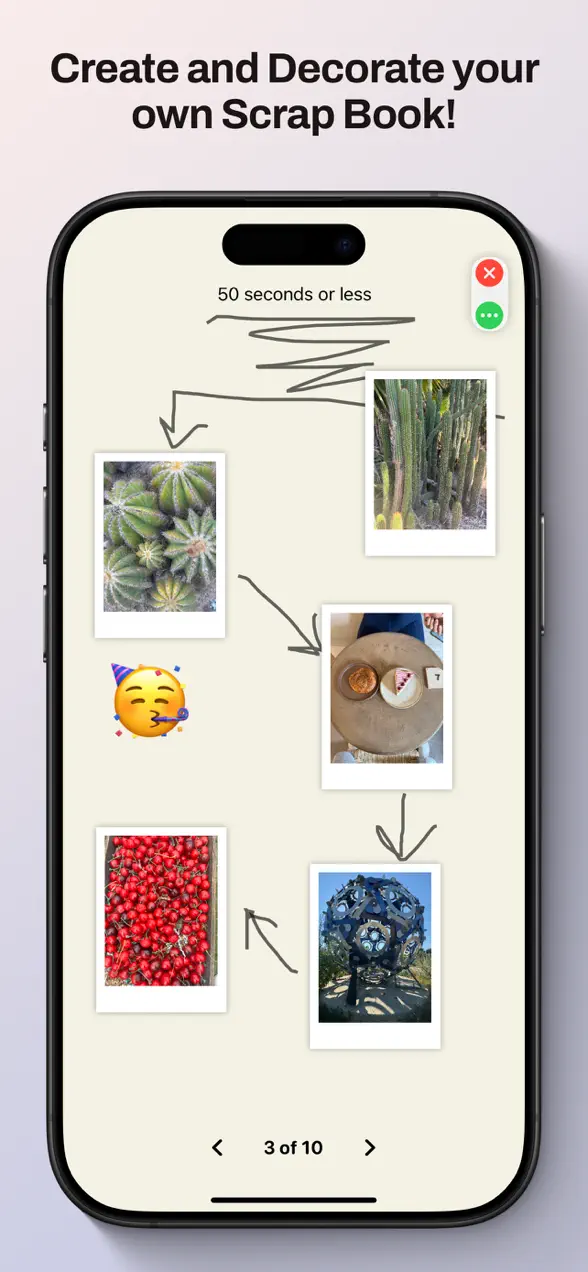
- Keep it. Add the photo to a scrapbook page, decorate it with stickers, drawings and text, and share it.
| Platforms | iPhone and iPad |
|---|---|
| Price | Free, no in-app purchases |
| Puzzle sources | Your own photos, or curated photo galleries |
| Modes | Classic (untimed) and Timed |
| Scrapbooks | Stickers, drawing and text, with undo and redo, and sharing |
Which photos make the best puzzles?
Some photos are fun to rebuild and some are miserable. The difference is how different each tile looks from its neighbors. Here's what works:
- Lots of color and detail. A market stall, a garden or a busy street gives every tile something to recognize.
- Clear edges and shapes. A face, a building or a pet against a background gives you landmarks to build from.
- Avoid big areas of one color. Sky, sea, snow and blank walls make tiles that look identical. They make great hard mode, but frustrating first puzzles.
- Pick photos you care about. The fun of a personal puzzle is looking closely at a moment you'd otherwise scroll past.
Start with a busy, colorful photo, then work up to the ones with more sky.
Ideas for photo puzzles
- For kids and grandparents: family photos make puzzles they'll actually want to finish, and Classic mode has no clock to rush them.
- After a trip: turn your best travel shots into puzzles, then put the finished ones on a scrapbook page with notes about the day.
- Pets: a close-up of a dog or cat is detailed enough to puzzle and cute enough to share.
- A small gift: build a scrapbook page around a shared memory and send it.
Are puzzles good for your brain?
Puzzles use a lot of your brain, but the evidence for long-term benefits is modest. A randomized trial in Frontiers in Aging Neuroscience (Fissler et al., 2018) studied 100 adults aged 50 and over. Jigsaw skill was strongly linked with a range of visuospatial abilities (r = 0.80), and lifetime puzzle experience was associated with better visuospatial cognition. But 30 days of daily puzzling improved people's puzzle skill, not their overall visuospatial cognition. That study used physical jigsaws, not phone puzzles. So play ScrapIt because it's fun and personal, not as brain training.
Honest limits
- Square tiles, not jigsaw shapes. ScrapIt cuts photos into square tiles. If you want traditional interlocking jigsaw pieces, this isn't that.
- It's a small app. The current version dates from April 2025, so it's stable but not frequently updated.
If your camera roll is too cluttered to find the good photos, clean it up first with Tidy Cam. It even has its own photo puzzle game built from forgotten photos. For word puzzles, try Word Piles. The store link and feature list are on the ScrapIt app page.
Frequently asked questions
Can you make a puzzle from your own photo on iPhone?
Not with the built-in Photos app, but you can with a free app such as ScrapIt Puzzles. Pick a photo from your library and ScrapIt cuts it into shuffled tiles for you to put back together in Classic or Timed mode.
Is ScrapIt Puzzles free?
Yes. ScrapIt Puzzles is free on iPhone and iPad and has no in-app purchases.
What is the difference between Classic and Timed mode?
Classic mode has no clock, so you can solve at your own pace. Timed mode puts a clock on the puzzle so you can try to beat your best time.
What can I do with a finished puzzle?
You can put the photo in a digital scrapbook, decorate the page with stickers, drawings and text, use undo and redo while you edit, and share the result.
First published . Updated September 26, 2026: rewrote the post as a step-by-step guide to making a photo puzzle on iPhone, added tips for choosing photos, and removed claims I couldn't verify.