
There are three ways to save a location with a photo on iPhone. Drop a pin in Apple Maps. Take a photo with location turned on, so the photo stores where it was taken. Or use an app like Pinit, which I built, to save your GPS spot, a photo, the time and a note together in one list, then navigate back with Apple Maps. Pinit is free with no in-app purchases, and pinning works offline.


Option 1: Apple Maps pins (built in, free)
If you just need to get back to one place, Apple Maps can do it. From Apple's guide:
- Mark where you are: touch and hold the Maps icon on the Home Screen, then choose Mark My Location.
- Drop a pin anywhere: touch and hold the map until a pin appears. Only one pin shows at a time unless you save it to your Places.
- Get back: tap the pin, then tap directions.
Best for: a single spot you'll navigate to. The catch: there's no photo attached.
Option 2: your photo's location data (built in, free)
When Location Services is on for the Camera, every photo stores where it was taken. To see it, open the photo in Photos and swipe up, then tap the map or address. You can also browse your whole library on a map. Only photos with embedded GPS data show up there.
Best for: finding where an old photo was taken. The catch: the one photo you need is buried among thousands, there's nowhere to write "level 3, near the blue pillar", and location data can be missing if Location Services was off.
Option 3: a GPS photo pin with Pinit
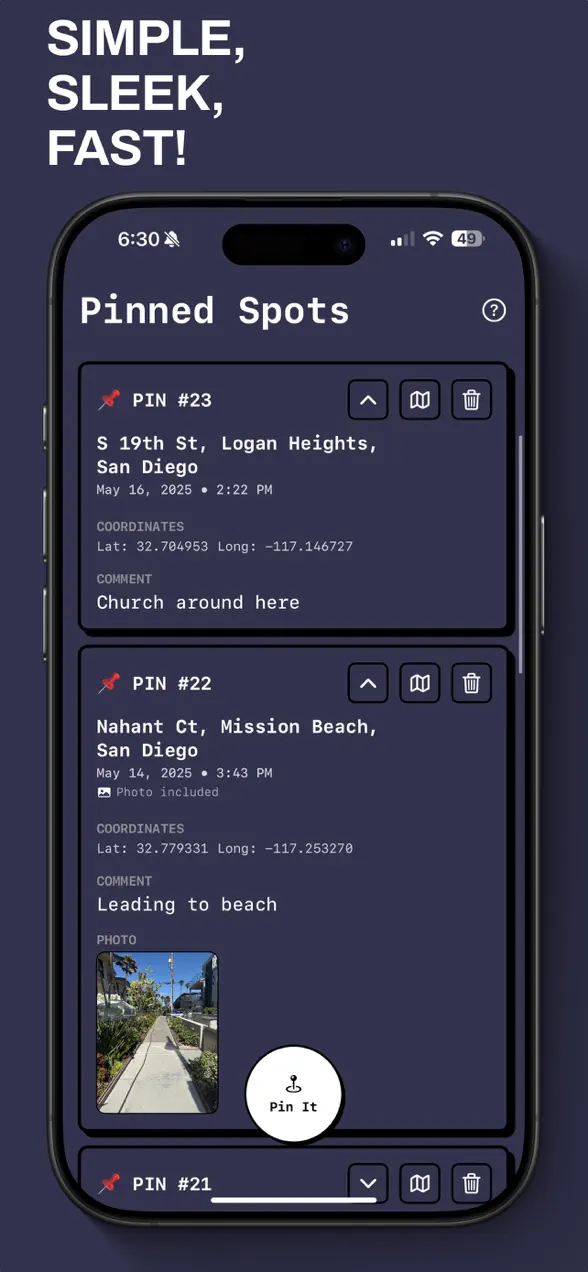
I built Pinit for the moments in between: you want the exact spot, a photo of it, and a note, together and easy to find later. It's what the App Store artwork above is about. You're out on a run, you pass something worth coming back to, and you can't stop for long.
- Tap Pin It. Pinit gets your GPS position. It waits for a fix accurate to about 20 meters, or takes the best reading it has after a few seconds.
- Take a photo with the camera button (you can also add or replace the photo later).
- Add a comment, such as "Level 3, row F" or "trail forks left here".
- Find it later in your numbered list of pins, each with an address, the date and time, coordinates, your comment and your photo.
- Navigate back by tapping the map button, which opens the pin in Apple Maps.
| Platform | iPhone |
|---|---|
| Price | Free, no in-app purchases |
| Each pin saves | GPS coordinates, street address, date and time, a photo and a comment |
| Offline | Pinning works without signal; directions in Apple Maps need a connection or a downloaded offline map |
| Account | None. Pins are stored on your iPhone |
Does it work offline?
Pinning does. GPS doesn't need cell data, and Pinit saves everything on your phone, so you can drop a pin on a trail with no signal. Two things do need a connection. The street address is looked up from your coordinates, so offline you may only get the coordinates. And the directions back come from Apple Maps, which needs data unless you've downloaded an offline map of the area (iOS 17 and later). If you're heading somewhere remote, download the offline map before you leave.
Practical ways to use it
- Parking: photograph the level sign or pillar number and add the row in the comment. A garage is exactly where GPS is weakest, so the photo and note do the real work.
- Trailheads and campsites: pin the car before you set off, and the campsite when you arrive.
- Photo spots: pin a view you want to come back to at golden hour, with a test shot.
- House hunting or travel: pin the café, the street or the flat you saw, with a note on why it mattered.
For a better fix, stand still in the open for a few seconds before you tap. Tall buildings and indoor spaces make GPS less accurate.
Honest limits
- iPhone only, and your pins stay on that iPhone. There's no account or cloud sync.
- It saves points, not routes. Pinit doesn't track your path or record a hike.
- Navigation is Apple Maps. For turn-by-turn directions, Pinit hands the pin to Apple Maps.
Store links and the feature list are on the Pinit app page. If your camera roll is full of photos like these, here's how to clean it up fast, and if you'd rather keep one photo a day as a journal, see 365 Buttons.
Frequently asked questions
How do I save my current location on iPhone?
In Apple Maps, touch and hold the Maps icon on the Home Screen and choose Mark My Location, or touch and hold the map to drop a pin and save it to your Places. To save a photo and a note with the spot, use an app like Pinit.
How can I see where a photo was taken on iPhone?
Open the photo in the Photos app and swipe up, then tap the map or address. This only works if Location Services was on for the Camera when you took the photo.
Does Pinit work without internet?
Yes, for pinning. GPS works without cell data and pins are saved on your iPhone. The street address lookup and Apple Maps directions need a connection, unless you downloaded an offline map in Apple Maps beforehand.
Is Pinit free?
Yes. Pinit is free on iPhone with no in-app purchases and no account.
First published . Updated September 26, 2026: rewrote the post as a how-to for saving a location with a photo on iPhone, added the free built-in options with Apple's instructions, and clarified what works offline.